This guide explains how to use Pet Battle Scripts together with Rematch
If you want to learn how to write TD Scripts, you can click this link with instructions for it:
Writing Pet Battle Scripts.
1. Required AddOns

Link copied
⇨
Rematch (see in the last part of this guide how to make the addon compatible with MoP Classic)
⇨
Pet Battle Scripts
Also you’ll need a source from which you can get strings and scripts prompt and easy.
Fortunately, this site is just the right one for that task.
Every strategy automatically offers a Rematch String and those that are marked with the respective Tag also provide a Script.
Hint: when a strategy doesn’t include a script on its own, there is a good chance somebody in the comments is sharing one.
2. Importing Rematch Strings
Link copied
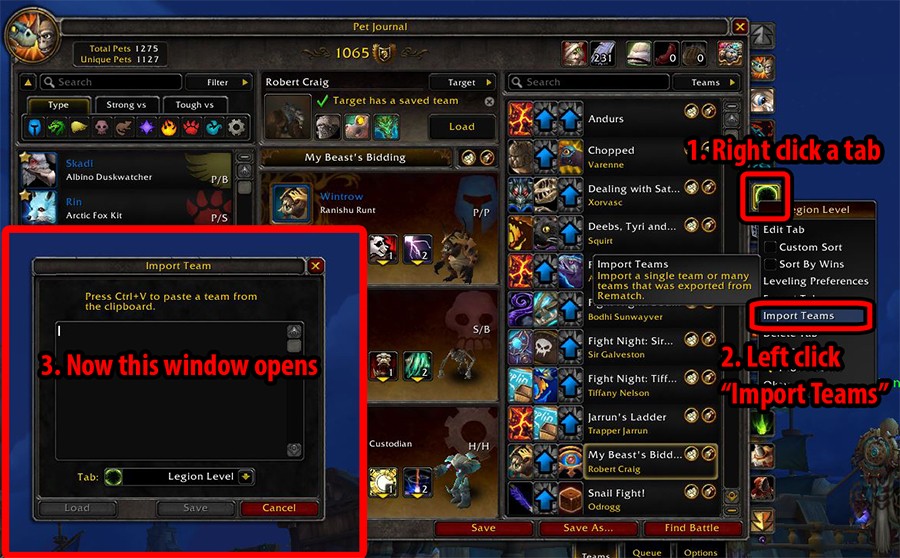
1. Open the Pet Journal ingame. On the right edge, you’ll see one or multiple tabs (which you can edit). Now right click on the tab in that you want to import a certain team.
2. Now left click on “Import Teams”.
3. A window will open in which you can insert a Rematch String.
3. Obtaining a Rematch String from Xu-Fu
Link copied
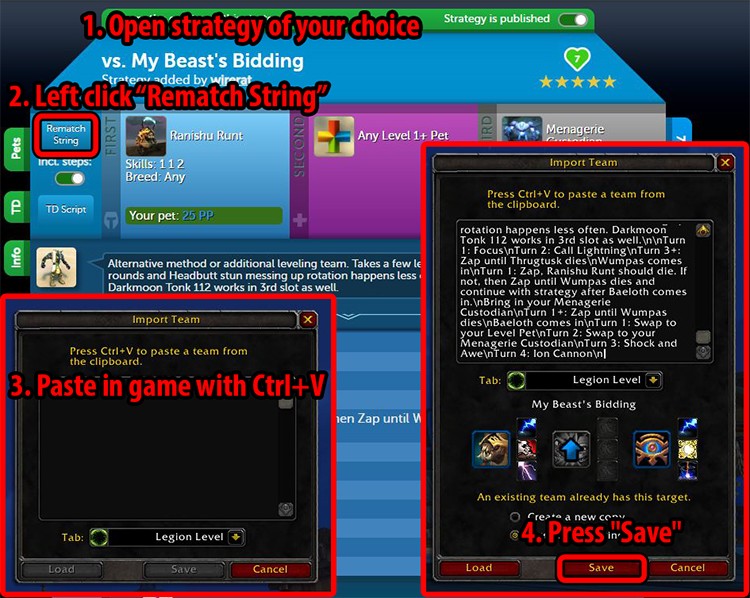
1. Go to the desired strategy on
https://classic.wow-petguide.com/.
2. Now left click on the button “Rematch String”.
3. Act as described above and then import the already saved string in the open window.
4. Click “Save”.
4. Importing Pet Battle Scripts
Link copied
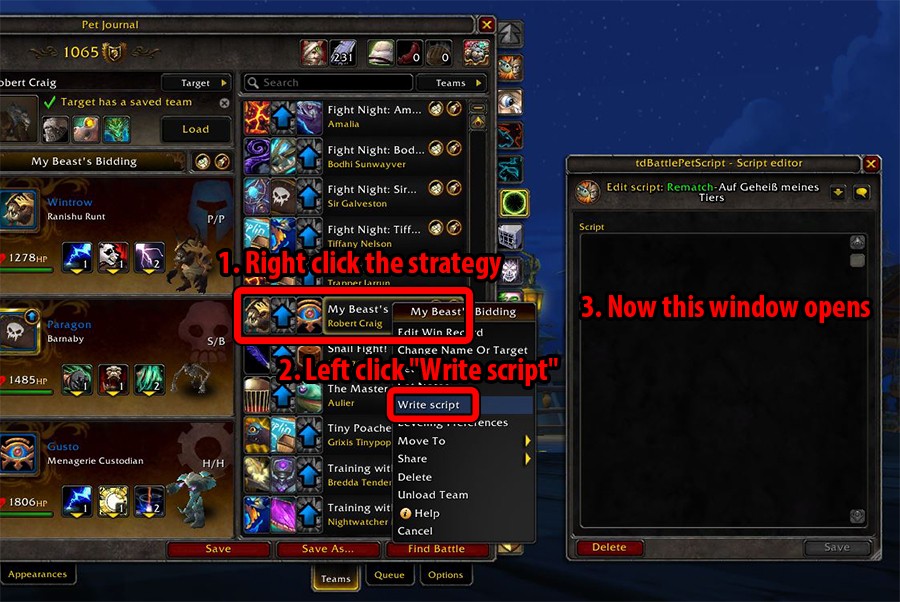
1. Right click on the saved team ingame.
2. Left click on “Write script”.
3. A window opens to either write or insert a script.
5. Obtaining scripts from Xu-Fu
Link copied
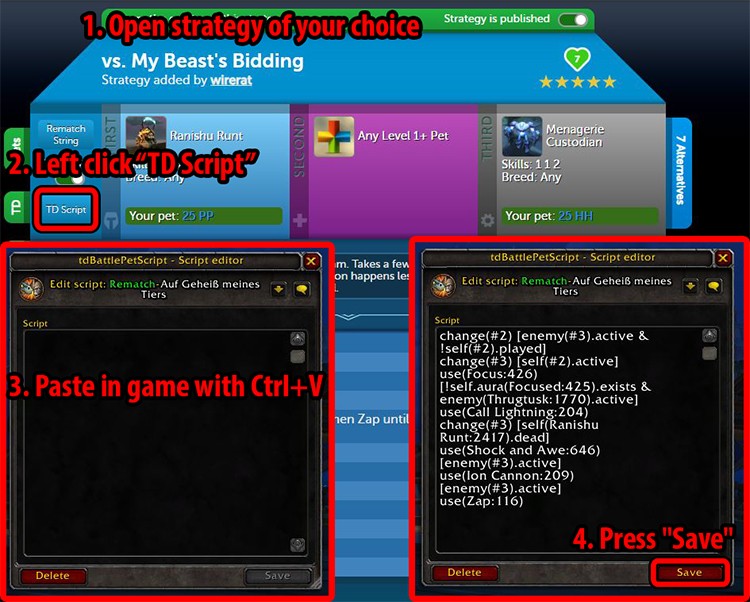
1. Scripts are imported by default along with the Rematch String, but if you only want to import a script, go to the desired strategy on
https://classic.wow-petguide.com/.
2. Now left click on the button “Script”.
3. Act as described above and then import the already saved script in the open window.
4. Click “Save”.
That’s it!
When you face the corresponding encounter, Rematch will now automatically (depending on your settings) load the right team and will also enable you to press just one button (by default A) to play every turn.
6. Make Rematch compatible with Classic
Link copied
Rematch’s author,
gello, holds the exclusive distribution rights to Rematch and hasn’t released a specific version of Rematch for Classic. However, most of Rematch’s features work fairly well, albeit with a lot of Lua errors.
But it’s possible to improve all of this and achieve error-free operation (there will still be a transparency issue around the edges of the add-on window, but it’s not a real issue). On Curseforge,
Glaives provided a list of the steps to perform (and Adal added some additional fixes):
1. Download the latest version of
Rematch (version 5.3.1 at the time of writing) and install it in your MoP Classic Addons folder.
2. Using a text editor*, make the following changes:
Rematch/chrome/toolbar.lua:250
replace
local startTime,duration = C_Item.GetItemCooldown(id)
with
local startTime,duration = C_Container.GetItemCooldown(string.gsub(id, "item:", ""))
Rematch/info/targetInfo.lua:329
replace
local name = C_TaskQuest.GetQuestInfoByQuestID(questID) or C_QuestLog.GetTitleForQuestID(questID)
with
local name = C_TaskQuest.GetQuestInfoByQuestID(questID) or C_QuestLog.GetQuestInfo(questID)
Delete lines 124, 125 and 136.
Rematch/main/constants.lua:407-409
replace
SOUND_HEADER_CLICK = SOUNDKIT.UI_PROFESSION_SPEC_PATH_SELECT,
SOUND_DIALOG_OPEN = SOUNDKIT.UI_CLASS_TALENT_OPEN_WINDOW,
SOUND_DIALOG_CLOSE = SOUNDKIT.UI_CLASS_TALENT_CLOSE_WINDOW,
with
SOUND_HEADER_CLICK = SOUNDKIT.UI_PROFESSIONS_WINDOW_OPEN,
SOUND_DIALOG_OPEN = SOUNDKIT.TALENT_SCREEN_OPEN,
SOUND_DIALOG_CLOSE = SOUNDKIT.TALENT_SCREEN_CLOSE,
Rematch/templates/templates.xml
replace all
Metal with
DiamondMetal
Rematch/chrome/titlebar.xml:46
replace
UI-Frame-PortraitMetal-CornerTopLeft
with
UI-Frame-Portrait
Rematch/info/targetData.lua
delete lines 29 to 347 (line 29 is the line that contains "-- Isle of Dorn (2248)" and line 347 is just before the line that contains "-- Celestial Tournament (571)")
delete the first 5 lines after
-- Pandaria (424)
delete the first line after
-- Northrend (113)
delete the first 5 lines after
-- Kalimdor (12)
delete the first line after
-- Eastern Kingdom (13)
delete the second line after
-- Darkmoon Island (407)
after
-- Outland (101), the 5 lines starting with
{101, should be replaced to start with
{1467,
* Note: The important thing is to have a good text editor, and for that you have the choice, like
BBEdit on macOS or
Notepad++ on Windows.
Visual Studio Code is also a popular, cross-platform editor.




0
Dugalla schrieb am 2026-03-07 03:14:34
14x LUA_WARNING: Rematch/Rematch.toc:95 Couldn't open Rematch/dialogs/dialog.xml
14x LUA_WARNING: Rematch/Rematch.toc:47 Error loading Rematch/info/allIcons.lua
14x LUA_WARNING: Rematch/Rematch.toc:22 Error loading Rematch/localization/localization-zhTW.lua
25x Rematch/panels/optionsPanel.lua:91: attempt to index field 'dialog' (a nil value)
[Rematch/panels/optionsPanel.lua]:91: in function '?'
[Rematch/main/events.lua]:17: in function <Rematch/main/events.lua:13>
Locals:
self = Frame {
UseCustomScaleWidget = Button {
}
widgetSetup = <table> {
}
OptionsManagementWidget = Button {
}
List = Frame {
}
BreedFormatWidget = Button {
}
widgetUpdate = <table> {
}
Top = Frame {
}
funcs = <table> {
}
}
(*temporary) = nil
(*temporary) = nil
(*temporary) = 161
(*temporary) = nil
(*temporary) = nil
(*temporary) = 161
(*temporary) = 162
(*temporary) = nil
(*temporary) = FontString {
}
(*temporary) = "attempt to index field 'dialog' (a nil value)"
L = <table> {
TAB_TARGETS = "Targets"
TAB_TEAMS = "Teams"
FILTER = "Filter"
TAB_QUEUE = "Queue"
TYPEBAR_TAB_STRONG_VS = "Strong Vs"
TYPEBAR_TAB_TOUGH_VS = "Tough Vs"
TYPEBAR_TAB_TYPE = "Pet Type"
TAB_OPTIONS = "Options"
TOTAL_PETS = "Total Pets"
UNIQUE_PETS = "Unique Pets"
TAB_PETS = "Pets"
25x Rematch/panels/optionsPanel.lua:91: attempt to index field 'dialog' (a nil value)
[Rematch/panels/optionsPanel.lua]:91: in function '?'
[Rematch/main/events.lua]:17: in function <Rematch/main/events.lua:13>
Locals:
self = Frame {
UseCustomScaleWidget = Button {
}
widgetSetup = <table> {
}
OptionsManagementWidget = Button {
}
List = Frame {
}
BreedFormatWidget = Button {
}
widgetUpdate = <table> {
}
Top = Frame {
}
funcs = <table> {
}
}
(*temporary) = nil
(*temporary) = nil
(*temporary) = 161
(*temporary) = nil
(*temporary) = nil
(*temporary) = 161
(*temporary) = 162
(*temporary) = nil
(*temporary) = FontString {
}
(*temporary) = "attempt to index field 'dialog' (a nil value)"
L = <table> {
TAB_TARGETS = "Targets"
TAB_TEAMS = "Teams"
FILTER = "Filter"
TAB_QUEUE = "Queue"
TYPEBAR_TAB_STRONG_VS = "Strong Vs"
TYPEBAR_TAB_TOUGH_VS = "Tough Vs"
TYPEBAR_TAB_TYPE = "Pet Type"
TAB_OPTIONS = "Options"
TOTAL_PETS = "Total Pets"
UNIQUE_PETS = "Unique Pets"
TAB_PETS = "Pets"
(editiert)
0
Lostpet93 schrieb am 2026-03-11 20:17:41
0
Zornosh
schrieb am 2026-01-27 13:08:25
I dowloaded the latest Version 5.3.1 and proceed to do the mentioned changes with n++
now i dont get the petframe to work
Any workaround for this or have i done something wrong?
13x Rematch/panels/loadedTargetPanel.lua:37: attempt to index field 'targetInfo' (a nil value)
[Rematch/panels/loadedTargetPanel.lua]:37: in function '?'
[Rematch/layout/frame.lua]:299: in function <Rematch/layout/frame.lua:289>
[Rematch/layout/frame.lua]:329: in function 'Configure'
[Rematch/layout/journal.lua]:117: in function '?'
[Rematch/layout/journal.lua]:134: in function <Rematch/layout/journal.lua:133>
[C]: in function 'SetShown'
[Blizzard_Collections/Classic/Blizzard_Collections.lua]:39: in function 'CollectionsJournal_UpdateSelectedTab'
[Blizzard_Collections/Classic/Blizzard_Collections.lua]:67: in function <...lizzard_Collections/Classic/Blizzard_Collections.lua:62>
[C]: in function 'Show'
[Blizzard_UIParentPanelManager/Classic/UIParentPanelManager.lua]:592: in function 'SetUIPanel'
[Blizzard_UIParentPanelManager/Classic/UIParentPanelManager.lua]:437: in function 'ShowUIPanel'
[Blizzard_UIParentPanelManager/Classic/UIParentPanelManager.lua]:304: in function <...IParentPanelManager/Classic/UIParentPanelManager.lua:300>
[C]: in function 'SetAttribute'
[Blizzard_UIParentPanelManager/Classic/UIParentPanelManager.lua]:1082: in function <...IParentPanelManager/Classic/UIParentPanelManager.lua:1061>
[C]: in function 'ShowUIPanel'
[Blizzard_UIParent/Mists/UIParent.lua]:497: in function 'SetCollectionsJournalShown'
[Blizzard_UIParent/Mists/UIParent.lua]:487: in function 'ToggleCollectionsJournal'
[Blizzard_ActionBar/Mists/MainMenuBarMicroButtons.lua]:270: in function <...Blizzard_ActionBar/Mists/MainMenuBarMicroButtons.lua:268>
Locals:
self = Frame {
Right = Texture {
}
Left = Texture {
}
SmallTeamsButton = Button {
}
Bottom = Texture {
}
Top = Texture {
}
TopRight = Texture {
}
EnemyTeam = Frame {
}
Portrait = Frame {
}
BottomLeft = Texture {
}
BigLoadSaveButton = Button {
}
Badge = Texture {
}
SmallSaveButton = Button {
}
Underline = Texture {
}
InsetBack = Texture {
}
MediumLoadButton = Button {
}
AllyTeam = Frame {
}
ClearButton = Button {
}
BottomRight = Texture {
}
Bling = Frame {
}
SmallRandomButton = Button {
}
TopLeft = Texture {
}
Name = FontString {
}
}
(*temporary) = nil
(*temporary) = nil
(*temporary) = nil
(*temporary) = nil
(*temporary) = nil
(*temporary) = nil
(*temporary) = nil
(*temporary) = nil
(*temporary) = nil
(*temporary) = nil
(*temporary) = nil
(*temporary) = nil
(*temporary) = nil
(*temporary) = "attempt to index field 'targetInfo' (a nil value)"
rematch = <table> {
1
Stvcobbs
schrieb am 2025-09-20 23:36:48
After using the replacement text and the deletion of the prescribed lines, Rematch addon loads just fine.
Only thing I noticed is that the section of editing the file "Rematch/info/targetData.lua", while suggesting to "delete lines 29 to 347", that didn't work for me. I noticed that line 348 was also related to Draenor, and needed to deleted also. I looked at Glaives' post on curseforge, and it had the same "29 to 347".
Thank you for including this FIX, and thanks to Glaives for doing the work.
-`♡´- (editiert)
1
Adal
schrieb am 2025-09-21 11:28:22
I just checked with Rematch version 5.2.11, "delete lines 29 to 347" is the correct instruction. I added clarifications to help locate the lines. Be careful not to have an editor that wraps text that is too long.
2
Stvcobbs
schrieb am 2025-10-19 05:13:36
cheers
1
Colbey#1189
schrieb am 2025-09-27 02:27:51
With all being 7x Rematch/chrome/toolbar.lua:1 Rematch/chrome/toolbar.lua:1: '=' expected near '_'
A black rematch panel screen when opened and more
6x Rematch/layout/frame.lua:244: attempt to index field 'toolbar' (a nil value)
[Rematch/layout/frame.lua]:244: in function <Rematch/layout/frame.lua:233>
[Rematch/layout/frame.lua]:319: in function 'Configure'
[Rematch/layout/journal.lua]:117: in function '?'
[Rematch/layout/journal.lua]:134: in function <Rematch/layout/journal.lua:133>
[C]: in function 'SetShown'
[Blizzard_Collections/Classic/Blizzard_Collections.lua]:39: in function 'CollectionsJournal_UpdateSelectedTab'
[Blizzard_Collections/Classic/Blizzard_Collections.lua]:67: in function <...lizzard_Collections/Classic/Blizzard_Collections.lua:62>
[C]: ?
[C]: in function 'Show'
[Blizzard_UIParentPanelManager/Classic/UIParentPanelManager.lua]:605: in function 'SetUIPanel'
[Blizzard_UIParentPanelManager/Classic/UIParentPanelManager.lua]:450: in function 'ShowUIPanel'
[Blizzard_UIParentPanelManager/Classic/UIParentPanelManager.lua]:317: in function <...IParentPanelManager/Classic/UIParentPanelManager.lua:313>
[C]: in function 'SetAttribute'
[Blizzard_UIParentPanelManager/Classic/UIParentPanelManager.lua]:1095: in function <...IParentPanelManager/Classic/UIParentPanelManager.lua:1074>
[C]: in function 'ShowUIPanel'
[Blizzard_UIParent/Mists/UIParent.lua]:610: in function 'SetCollectionsJournalShown'
[Blizzard_UIParent/Mists/UIParent.lua]:600: in function 'ToggleCollectionsJournal'
[Blizzard_ActionBar/Mists/MainMenuBarMicroButtons.lua]:270: in function <...Blizzard_ActionBar/Mists/MainMenuBarMicroButtons.lua:268>
Locals:
layoutName = "3-teams"
def = <table> {
view = "teams"
panelsUsed = <table> {
}
layoutName = "3-teams"
tab = "Teams"
height = 520
mode = 3
panels = <table> {
}
width = 844
}
chromeHeight = 58
chromeYOffset = 24
and it goes on and on and on for 165 lines :) (editiert)
1
Adal
schrieb am 2025-09-27 12:10:02
1
Colbey#1189
schrieb am 2025-09-27 19:35:30
I DID double as well as line by line via pastebin, and I did that correctly
elseif cooldownType=="item" then
local startTime,duration = C_Container.GetItemCooldown(string.gsub(id, "item:", ""))
cooldown:SetCooldown(startTime,duration)
So I am goign to repalce the file with an unedited version, change again, and see if MAYBE I accidently added a charafcter somewher..like an F...from doing alt+f :) (editiert)
2
Colbey#1189
schrieb am 2025-09-27 19:43:58
A straggler was there some where. I re-verivifed that I entered the lien correctly, renamed file, saved it for comparison, snagged an unedited form, Looked for SPECIFICS (The word Wrapper is 8 lines above the targeted line for the toobar.lau 250, copy, deleted, pasted...and it works. I ASSUMED it was somethign I did but I also realized it was so SMALL that I would hope that the above would point the way to my error, thanks for taking time to post. Now to figure out the scripts hehe
1
Adal
schrieb am 2025-09-27 20:27:45
A good editor I use on macOS is BBEdit.
On Windows, Notepad++ has a good reputation. Visual Studio Code is also a popular, cross-platform editor. (editiert)
2
Colbey#1189
schrieb am 2025-09-28 00:58:27
Neuer Kommentar: